Godot Launcher 1.11.0 - VSCodium Support and Project Setup

Godot Launcher 1.11.0 adds built-in VSCodium support alongside Visual Studio Code. The launcher can find either editor, configure Godot to open scripts in it, and prepare the project setup.
This release also reorganizes the Projects view around project cards and adds clearer workflows for project setup, Project Settings, and Godot editor installs.
Highlights
- Use VSCodium with built-in detection and Godot project configuration.
- Manage Visual Studio Code and VSCodium from dedicated Code Editor Settings.
- Browse stable, prerelease, Standard, and .NET Godot releases from one catalog.
- Manage a project's Godot editor, source control, code editor, and launch options in one place.
- Use updated Git setup files, and add a missing identity or skip the initial commit.
Use Visual Studio Code or VSCodium
VSCodium joins Visual Studio Code as a built-in integration on Windows, macOS, and Linux. Open Settings > Code Editors to find either editor, choose a custom location, and set the default for new projects. You can still choose a different editor for any project that needs it.
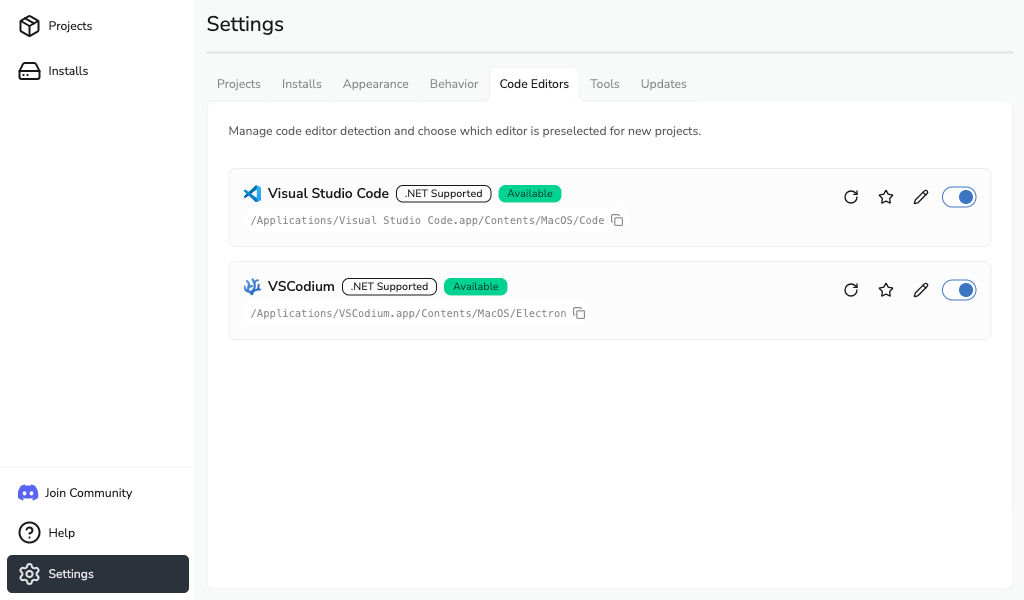
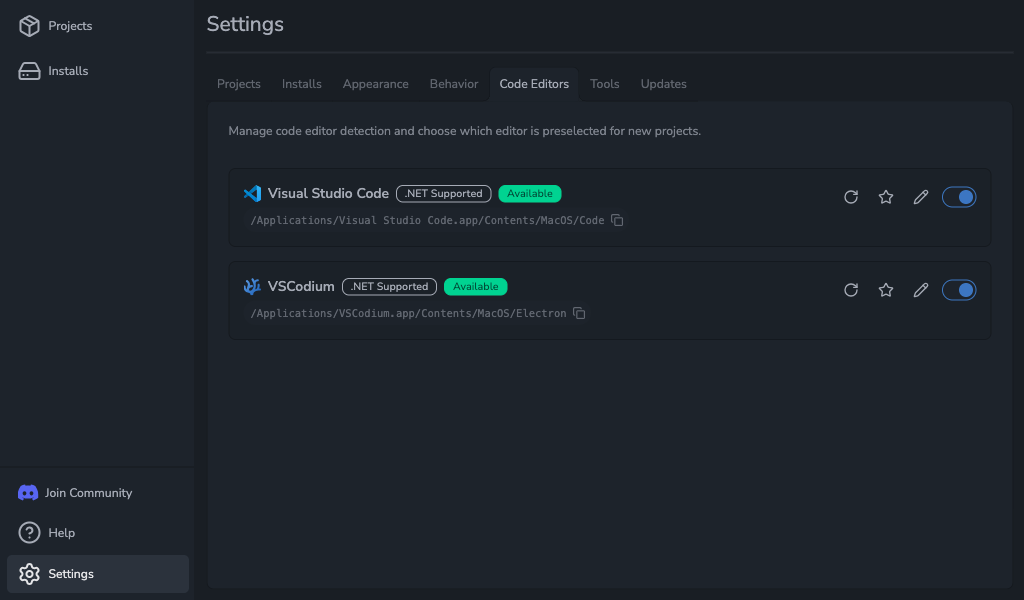
See Code Editor Settings, Visual Studio Code Setup for Godot, and VSCodium Setup for Godot for setup details.
Manage projects from the Projects view
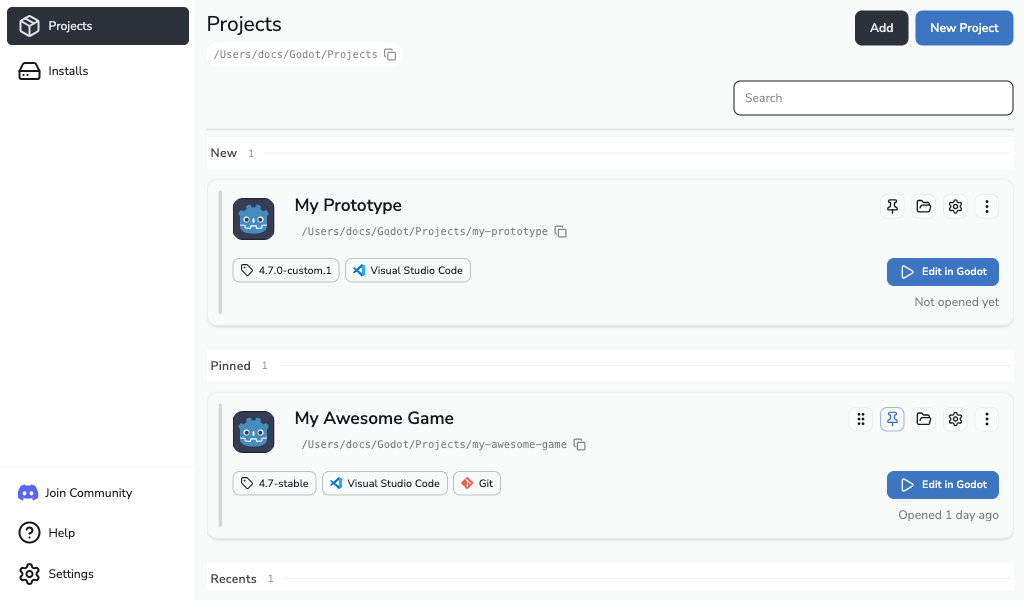
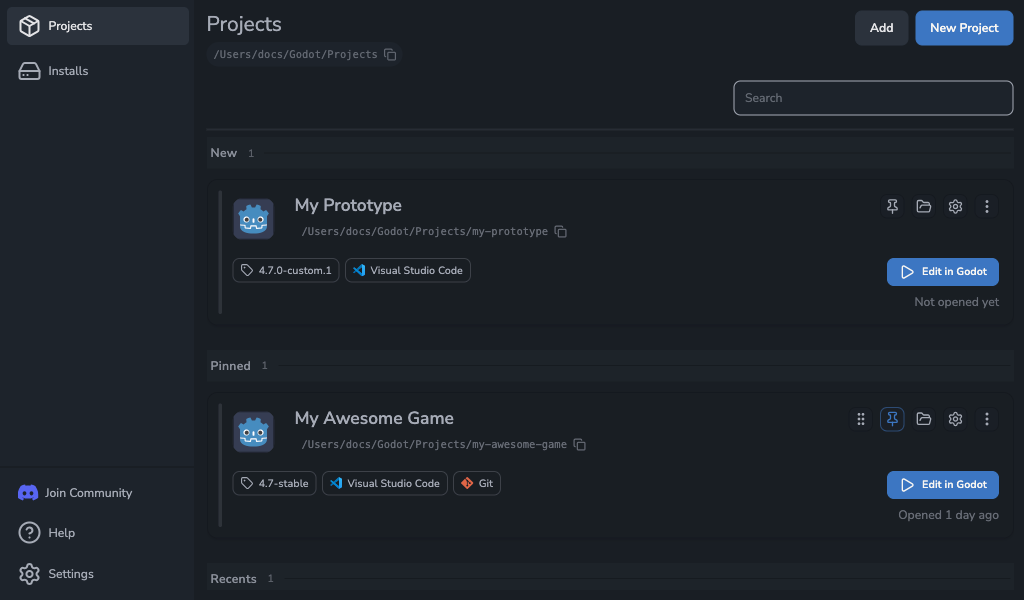
The new card layout puts useful project details and actions together. Each card can show the Godot editor version, selected code editor, Git status, project folder, and the main launch action.
Projects are grouped into New, Pinned, and Recents. You can pin the projects you use most and arrange pinned cards in the order that works for you.
Create projects with their tools ready
The new project flow brings the main choices into one drawer. Choose the Godot editor version and renderer, then decide whether the launcher should initialize Git and prepare a code editor.
Your default code editor is preselected when it is available. You can keep it, choose the other supported editor, or choose None while creating the project. Godot Launcher also creates a safe project folder name from the name you enter.
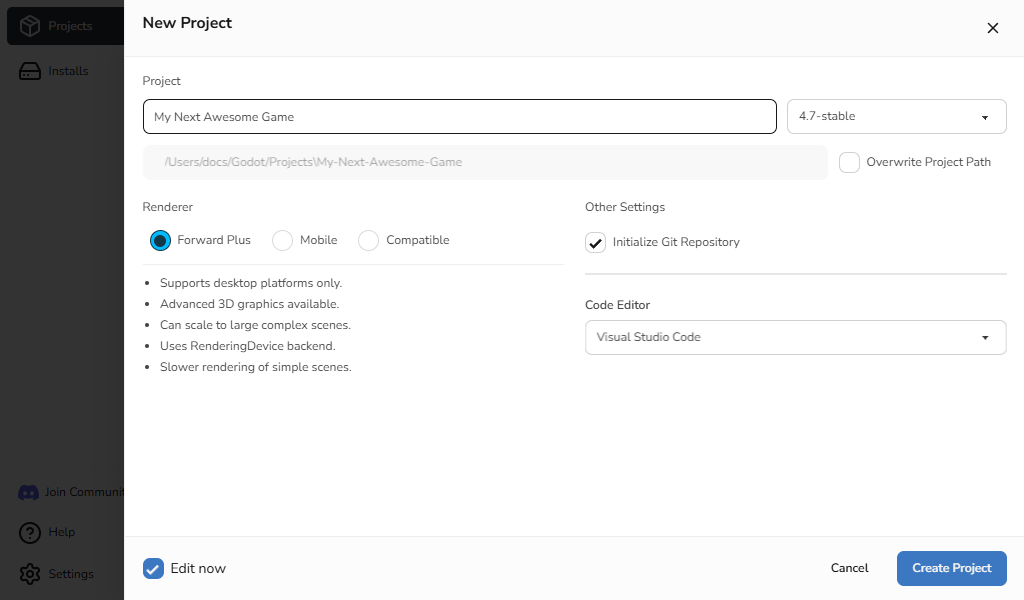
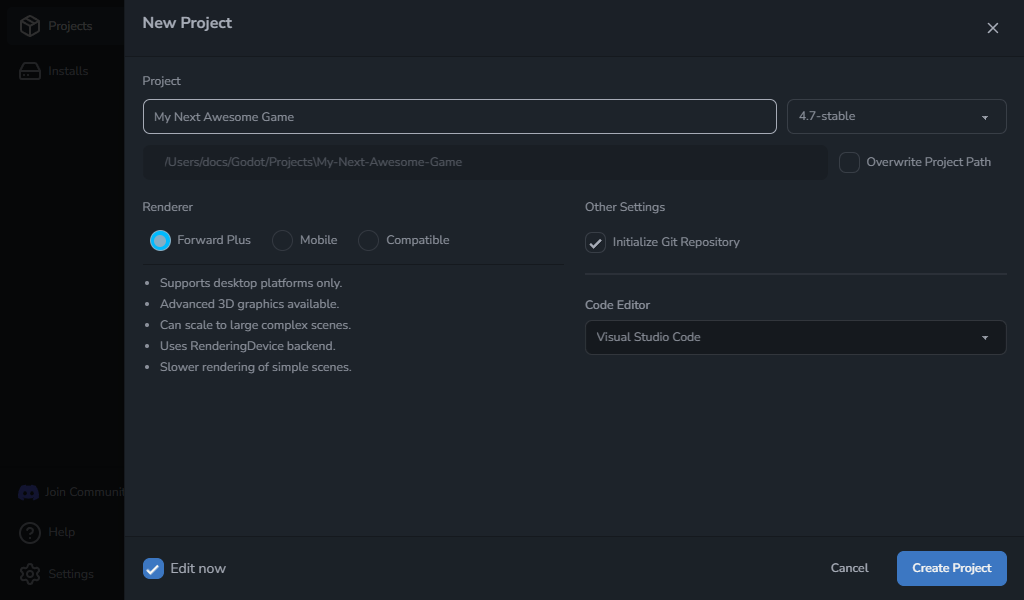
Git setup remains available when you create a project. In 1.11.0, it uses updated Godot ignore files and a .gitattributes file. If Git needs your name or email for the initial commit, add them during project creation or skip the commit and continue.
See Creating a Project and Using Git With Godot Launcher for the full setup options.
Find and install Godot editor releases
The new editor catalog makes release choices easier to compare. Show the latest releases or the full list, switch between stable and prerelease channels, and choose a Standard or .NET build from the same drawer.
Downloads now stay in the catalog while they run, so you can see progress and retry an install from the same place.
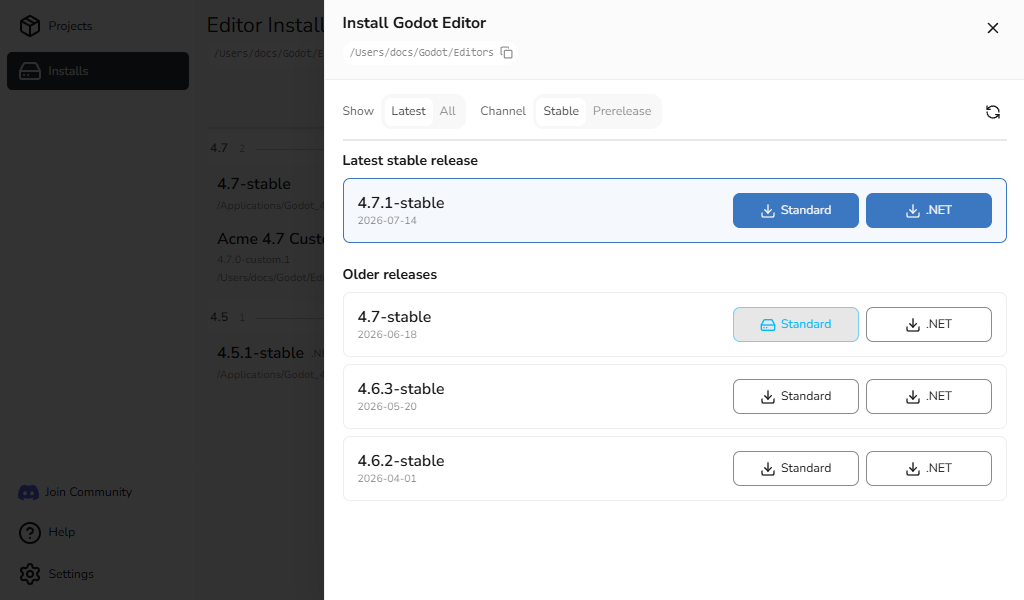
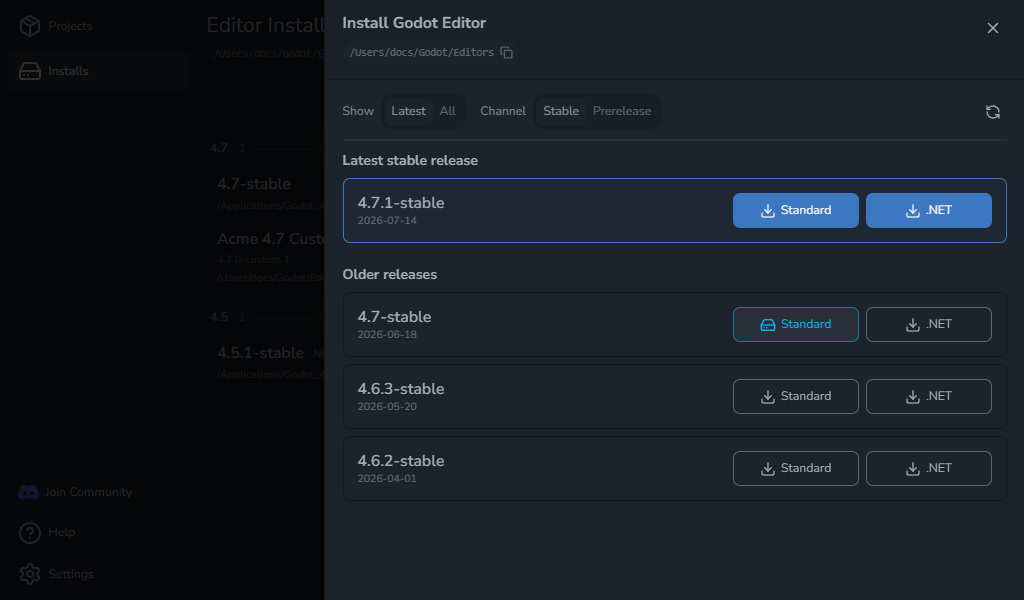
See Installing a Godot Editor for a closer look at the catalog and install states.
Manage project tools in one place
Open a project's Project settings action to change its Godot editor, check or initialize Git, choose a code editor, or launch Godot in windowed mode.
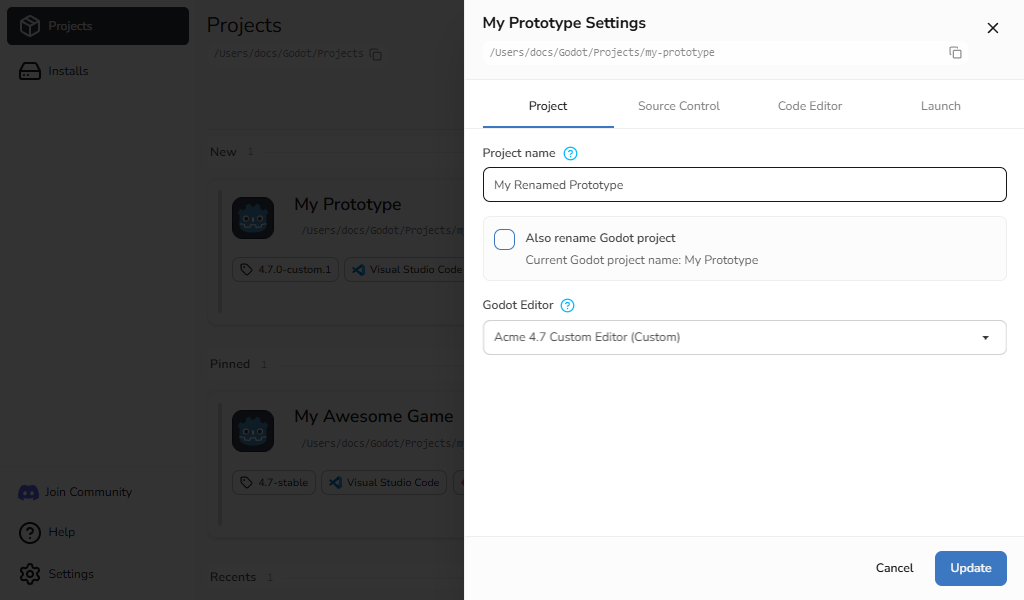
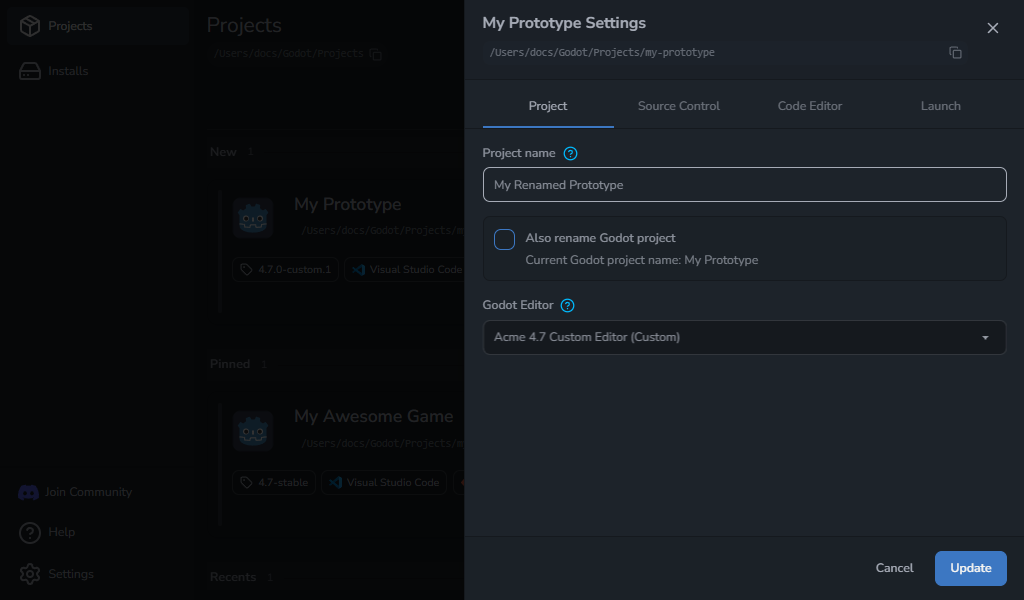
If Godot stops opening scripts in the selected editor, Reset config reapplies the project's code editor setup. Changing the Godot editor version remains a separate choice.
See Project Settings for all available choices.
Keep working when a tool changes
Projects can outlive the tools they were first set up with. If a selected code editor is no longer available, you can launch Godot without it, unset the code editor for the project before launch, or open Code Editor Settings.
If a project needs a Godot editor that is missing, you can install that release, choose a compatible installed editor, or keep the project in the launcher until you are ready to resolve it.
Smaller improvements
Godot Launcher 1.11.0 also includes:
- A shorter first-run setup with four clear steps.
- Clearer release, tool, and project status labels.
- More useful project timestamps and recent-project ordering.
- Better system tray guidance when a Linux desktop cannot show the tray icon.
- Layout and dialog improvements for smaller windows.
Update to 1.11.0
Download Godot Launcher 1.11.0 from the download page or the GitHub release. Existing users on a supported updater path can also update from inside the app.
Godot Launcher 1.11.0 requires macOS 12 Monterey or later.